Schlage® Encode Won't Connect to Wi-Fi: 7 Fixes That Work
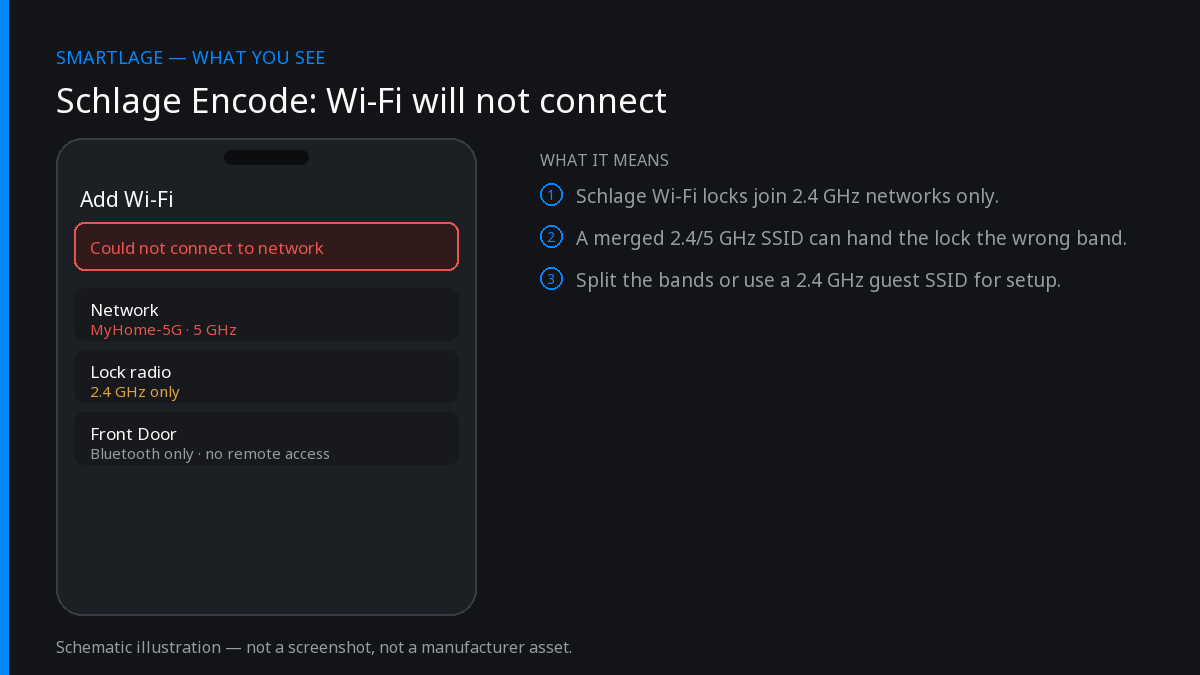
The Encode has a 2.4GHz-only radio. Most enrolment failures are a router problem, not a lock problem: a combined 2.4/5GHz SSID with band steering, WPA3-only security, a captive or guest network, or simply too little signal at the door. Split the bands or create a temporary 2.4GHz-only SSID, re-run setup within a few metres of the router, then move the lock back.
By the Smartlage editorial team ·
Every fix is tested before publication. Steps we could not confirm on hardware are marked [VERIFY] rather than guessed. Our editorial standards.
Tested on: iOS [VERIFY: version not confirmed] · Schlage Home app [VERIFY: version not confirmed] · Lock firmware [VERIFY: version not confirmed] · Hardware [VERIFY: version not confirmed]
The Encode family (BE488/BE489 deadbolt and the Encode lever) connects to your home network directly over Wi-Fi with no hub. That is its main selling point and also its main failure mode: it inherits every quirk of your router.
Work through these in order. Steps 1 to 3 resolve the large majority of cases, and none of them require touching the lock's programming.
Seven fixes, in order
Confirm the network is 2.4GHz and the phone is on it
The lock cannot see a 5GHz or 6GHz network at all. During setup your iPhone must also be joined to the 2.4GHz network, because the app passes the credentials it is currently using. On a combined SSID the phone will usually be on 5GHz and the handoff fails.
Confirm: The network name offered in the app matches the 2.4GHz SSID you intend to use.
Turn off band steering, or create a temporary 2.4GHz-only SSID
Band steering presents one SSID and moves clients between bands. The lock joins, the router steers it, the session dies. Most routers let you split the bands into separate names; if yours does not, disable steering for the duration of setup, or create a guest-free 2.4GHz SSID just for IoT devices and leave the lock on it permanently.
Confirm: Two distinct SSIDs are visible from your phone's Wi-Fi list.
Check the security mode
Use WPA2-PSK (AES) or WPA2/WPA3 mixed mode. WPA3-only networks and enterprise (802.1X) networks will not accept the lock. Also avoid networks with a captive portal or client isolation enabled, which are common on guest SSIDs.
Confirm: The router reports WPA2 or mixed mode on the 2.4GHz band.
Enrol the lock close to the router, then move it back
If the lock is already installed and struggling, take the interior assembly off the door — or bring the router closer if that is easier — and run enrolment within a few metres. A lock that enrols cleanly and then drops has a signal problem, not a credentials problem.
Confirm: Enrolment completes and the app shows a battery percentage.
Measure the actual signal at the door
Stand at the lock with your phone and check the signal strength of the 2.4GHz SSID. Exterior doors sit behind metal frames, brick and wiring, and a bar or two that is fine for a phone is marginal for a battery-powered radio. A mesh node or access point within line of sight of the door is the durable fix.
Confirm: The lock stays online overnight without going stale in the app.
Rule out DHCP and device-count limits
Check your router's client list for the lock. If it appears and disappears, look for a full DHCP pool, a MAC filter, or a per-device limit on an ISP-supplied router. Reserving a fixed IP for the lock removes a whole class of intermittent dropouts.
Confirm: The lock holds one consistent IP address across a day.
Reset the lock's network settings and re-enrol
If everything above checks out, remove the lock from the app, reset its network configuration, and add it again from scratch. This is different from a factory reset and does not wipe access codes. [VERIFY: the exact network-reset key sequence for your model — see your lock's programming guide.]
Confirm: Setup completes in one pass with no retry prompt.
Fresh batteries matter more than they should
Wi-Fi transmission is the most power-hungry thing the lock does. A battery pack that still turns the bolt fine can be too weak to hold an association, which shows up as an enrolment that reaches 90% and then fails. If the batteries are more than a couple of months old and the lock has been on Wi-Fi, fit a fresh set before blaming the router.
Use good alkaline cells. Lithium and rechargeable cells report voltage differently and can make the lock's battery estimate meaningless.
When the lock joins but keeps going offline
That is a different article: the radio is fine and something is dropping the session. Router power saving, airtime fairness, and aggressive client timeouts are the usual causes. Reserve the IP, park the lock on a dedicated 2.4GHz IoT SSID, and put an access point in range of the door.
What this costs you in battery life
Be realistic about the trade. A Wi-Fi Schlage lock in normal use runs well under three months on a set of batteries, where a Thread-based model such as the Encode Plus runs over a year. If you are fighting Wi-Fi at a difficult door, the honest answer may be a different model rather than a better router.
Common questions
- Does the Schlage Encode work on 5GHz Wi-Fi?
- No. The Encode has a 2.4GHz-only radio. It cannot see or join a 5GHz or 6GHz network, which is why combined-SSID routers cause so many setup failures.
- Does the Encode need a hub?
- No. It connects directly to your home Wi-Fi. That is the difference between it and the Bluetooth-based Sense, which needs the Sense Wi-Fi Adapter for remote access.
- Can I put the lock on a guest network?
- Usually not. Guest networks commonly use client isolation or a captive portal, both of which block the lock. Use a dedicated IoT SSID on the main network instead.
- Why does setup fail right at the end?
- A late failure normally means credentials were accepted but the association could not be held — weak signal, band steering, or tired batteries. Enrol close to the router with fresh cells to separate the two.
- Will fixing Wi-Fi let me add the Encode to Apple Home?
- No. The Encode BE488/BE489 has no HomeKit support at all, regardless of network. Only Encode Plus and Sense join Apple Home.
Sources
- Manufacturer: Schlage Encode product documentation (2.4GHz requirement).
- Router behaviour verified against common consumer band-steering implementations.
Related
- Schlage® Lock Shows Offline in the App But Works Manually
- Schlage® Encode (BE489): Features, Limits and Known Issues
- Schlage® Encode Lever: Wi-Fi Access Control Without a Deadbolt
- Schlage Encode (BE489): features, limits and known issues
- Schlage compatibility matrix: every model against every feature
- Schlage Home app alternatives: Apple Home, Home Assistant and third-party apps
We also make Smartlage, an independent iPhone app for Schlage® locks — widgets, Shortcuts and faster access codes. What it does.