Schlage® Encode Firmware Update Stuck or Failing: The Bluetooth Workaround
Firmware updates that hang or fail over Wi-Fi usually complete over Bluetooth. Remove the lock's Wi-Fi connection so the app falls back to a direct Bluetooth transfer, fit fresh batteries, stand at the door with the screen on, and allow twenty minutes or more without leaving the app. Do not pull batteries mid-update.
By the Smartlage editorial team ·
Every fix is tested before publication. Steps we could not confirm on hardware are marked [VERIFY] rather than guessed. Our editorial standards.
Tested on: iOS [VERIFY: version not confirmed] · Schlage Home app [VERIFY: version not confirmed] · Lock firmware [VERIFY: version not confirmed] · Hardware [VERIFY: version not confirmed]
A stalled firmware update is alarming because the lock is the one device in the house you cannot afford to brick. The reassuring part: the lock keeps running its existing firmware until a new image is fully written and verified, so an interrupted transfer normally leaves you exactly where you started.
The unreassuring part: over Wi-Fi these transfers fail often. The connection is 2.4GHz, the lock is behind a door, and the app gives you a progress bar with no error detail.
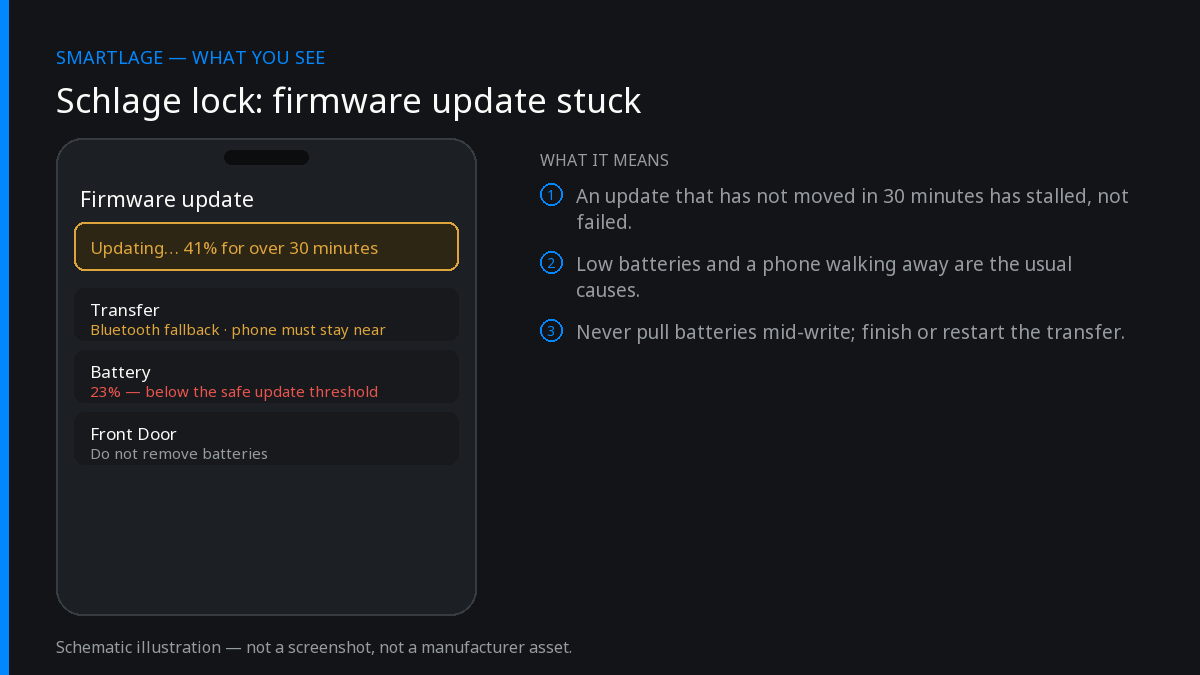
The Bluetooth workaround, step by step
Fit a fresh set of alkaline batteries
Do this first, not after a failure. An update is the longest continuous radio session the lock will ever run, and a partly depleted pack is the single most common reason it stops halfway.
Confirm: The app reports a full battery level before you start.
Remove the lock's Wi-Fi connection in the app
With no Wi-Fi configured, the app has to transfer the image over Bluetooth from your phone. This is the whole trick — it replaces an unreliable multi-hop cloud path with a direct one. [VERIFY: exact menu label for removing the Wi-Fi network in the current app version.]
Confirm: The lock shows as Bluetooth-only or offline in the app.
Stand within arm's reach of the lock
Bluetooth range through a door and its frame is much shorter than the spec sheet suggests. Stay on the same side as the interior assembly, within a metre, for the whole transfer.
Start the update and keep the app in the foreground
Set Auto-Lock on your iPhone to Never for the duration, or tap the screen periodically. If iOS backgrounds or suspends the app, the transfer stops. Do not answer a call on the same device.
Confirm: The progress indicator advances, even slowly.
Wait it out — twenty minutes or more is normal
Bluetooth transfers of a full firmware image are slow. A progress bar that sits at one percentage for several minutes is not necessarily stalled. Give it at least half an hour before deciding it has failed.
Confirm: The lock beeps or cycles and the app reports the new version.
If it fails, retry before changing anything else
Repeat attempts on the same setup frequently succeed. Only after two or three clean Bluetooth attempts should you consider removing and re-adding the lock to the account.
Re-add Wi-Fi once the update completes
Put the lock back on your 2.4GHz network afterwards and confirm remote control works before you walk away.
Confirm: You can lock and unlock from cellular data, away from home Wi-Fi.
What happens if the update is interrupted
A partial image is not applied. If batteries die or you walk out of range, the lock keeps its current firmware and you retry from the start. The failure mode to actually avoid is pulling the batteries during the final apply-and-reboot phase, which is the short window after the transfer finishes and the lock cycles.
If the lock ends up unresponsive at the keypad after an interrupted update, remove one battery for thirty seconds, refit it, and let the lock complete its self-test before touching the app.
Never disassemble the lock to force a power cut mid-update. Wait for the transfer to time out on its own.
Why the Wi-Fi path fails so often
Over Wi-Fi the image travels from the cloud to a battery-powered radio sitting behind a door, on a 2.4GHz band shared with everything else in the house. Any dropout restarts the transfer. Bluetooth removes the router, the internet connection and the cloud queue from the equation, leaving one short hop from a device with a large battery.
Should you update at all?
Yes, but not on the morning of a trip. Firmware releases carry security fixes and, on some models, connectivity improvements. Schedule an update when you have half an hour, physical access to the lock, and a spare set of batteries in the drawer.
We do not list firmware version numbers on this site. The app shows you the version it has, and any number we published would be stale within weeks.
Common questions
- Can a failed firmware update brick a Schlage lock?
- It is very unlikely. The existing firmware keeps running until a complete image is verified, so an interrupted transfer normally means you simply retry.
- How long should a Schlage firmware update take?
- Over Bluetooth, expect twenty minutes or more, and do not judge progress in the first ten. Over Wi-Fi it can be quicker when it works, but it fails more often.
- Why does the app say the update failed but the lock beeped?
- The beep can come from the lock rebooting after a successful apply while the app lost the session. Reopen the app, refresh, and check the reported firmware version before retrying.
- Do I lose access codes when firmware updates?
- No. Codes and users survive a firmware update. They are only wiped by a factory reset.
- Can I skip firmware updates entirely?
- You can, but you keep any bugs and unpatched security issues that the release addresses. On a door lock that is a poor trade.
Sources
- Behaviour of Bluetooth-fallback firmware transfer in the Schlage Home app (observed).
- Owner reports of Wi-Fi update failures resolved by removing the Wi-Fi connection, 2025–2026.
Related
- Why the Schlage® Home App Now Shows Ads (And What You Can Do About It)
- Schlage® Home App "Failed to Perform Action": How to Fix It
- Schlage® Home App Notifications Not Working: Complete Fix
- Schlage Encode (BE489): features, limits and known issues
- Schlage compatibility matrix: every model against every feature
- Schlage Home app alternatives: Apple Home, Home Assistant and third-party apps
We also make Smartlage, an independent iPhone app for Schlage® locks — widgets, Shortcuts and faster access codes. What it does.